|
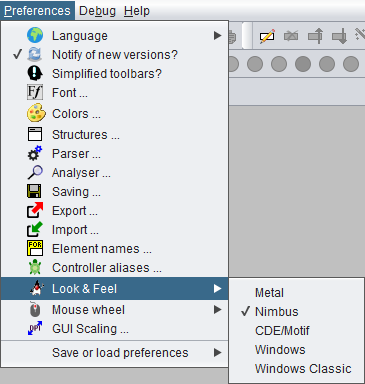
Here you can change the overall look & feel of the graphical user interface of Structorizer. The different designs that appear in the submenu are those that are installed on your computer. Simply select one of them. Structorizer remembers the chosen theme and will load it automatically the next time you start Structorizer.
Here are four L & F examples of some part of the Diagram menu (in order of appearance: "Metal", "Nimbus", "Motif", "Windows"):
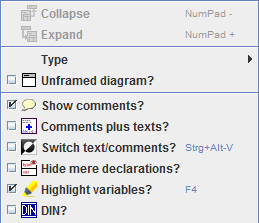 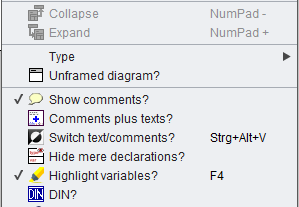
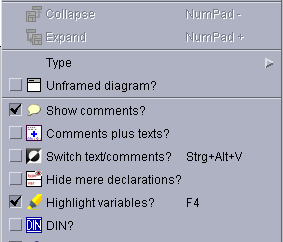 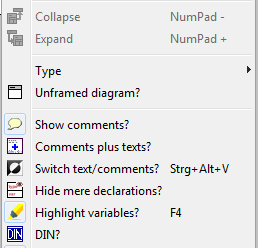
(Note that the screenshots throughout the pages of this User Guide were taken with different Looks & Feels.)
Temporary problem with "Windows" Look & Feel under Windows 11:
As stated in Issue #1133, the Look & Feel "Windows" began to show a defect with Windows 11: Whereas most Looks & Feels indicate the selection status of menu items equipped with both an icon and toggle function (as e.g. all the menu items below submenu "Type" in the screenshots above) via a checkbox placed left to the icon, Look & Feel "Windows" used to emphasize the selected status of such items by embedding the icon in a light blue box instead (see fourth of the screenshots above). This had worked only until Windows 10, however. After the Windows update, there was no visible toggle status on menu items of this kind anymore in this L&F, not at least up to and including with Java (Swing) version 21. So far our only workaround recommendation had been to use a different Look & Feel.
Eventually, we chose to offer a Structorizer-built-in workaround mechanism, which was rolled out with Structorizer version 3.32-35: The Look & Feel preferences now provide an additional option "Use Windows 11 L&F workaround" if Structorizer detects a Windows 11 environment:

If activated, this option will somehow simulate the former "Windows" L&F functionality by exchanging the icon of menu items whenever their status is toggled, such that an icon version with light-blue background indicates the selected status:

For the language preference menu, however, another indication approach was chosen (which is closer to the standard with a checkbox symbol and was better distinguishable):

This workaround option is only enabled while L&F "Windows" is active. It has no impact on other Looks & Feels and the user may switch it off at any time.
Ironically, after version 3.32-35 had been ready, it turned out that the "Windows" L&F deficiency had eventually been fixed with at least OpenJDK 25, such that the workaround option described above became redundant for users running Structorizer on an up-to-date Java platform. (For users who run Structorizer on a legacy Java version, i.e. Java 11 through at least 21, however, it may still be useful.)
Further hints:
- If you ever happen to come to a situation where the given design makes Structorizer crash (i.e. prevents opening it), then open the file structorizer.ini, which is located in the subfolder .structorizer of your home directory, with a text editor that copes with UNIX newlines, seek the line starting with "laf=" and delete it. Then start Structorizer again.
- The "CDE/Motif" Look and Feel may have some unexpected side effect. So the usual Cut, Copy and Paste hot keys (Ctrl-X, Ctrl-C, Ctrl-V) won't work within the Element editors, but the UNIX-like equivalent actions like central mouse-button click in order to paste may not work, either. Usually, Shift-Del, Ctrl-Ins, Shift-Ins (also being very common in Windows) may work instead, though. Likewise the size of the controls on some dialogs may vary so much that e.g. the OK button might not be visible without manually enlarging the respective dialog.
- See GUI Scaling if — besides the Look & Feel — the size of your icons or GUI fonts does not please you or e.g. if you want to scale up Structorizer including menus, toolbars etc. for presentation purposes.
For further details about "Java Look & Feel", please browse yourself ... |